
Sign up for OCHIN MyChart
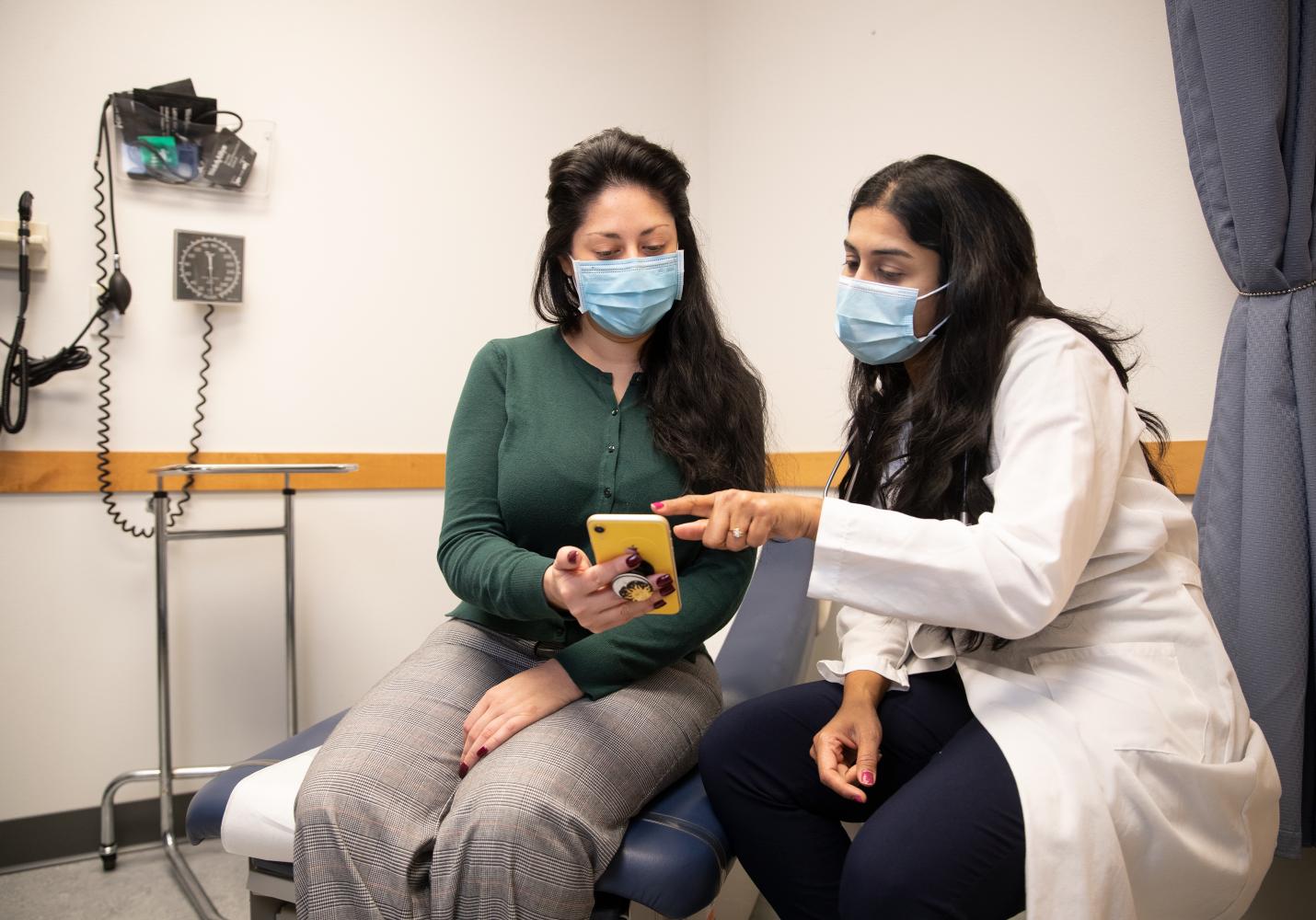
Manage your care online with OCHIN MyChart
Learn how to sign up and use OCHIN MyChart to manage your care online. Use it to check your health records, schedule visits, and more.
How OCHIN MyChart can help
Use OCHIN MyChart to get information, schedule visits, and more without having to call or visit a clinic. Visit OCHIN MyChart often to see new features.
Here are some of the things you can do now with OCHIN MyChart:
- Schedule or cancel visits
- View lab test results
- Send a message to your care team
- View immunizations
- View your child’s records
- View your medications
- Join a video visit with your provider
- View and pay your bill
How to sign up for OCHIN MyChart
It’s easy to sign up for OCHIN MyChart. Follow these steps to get started:
1. Call us
Call us at 503-988-5558 to tell us you want to sign up for OCHIN MyChart. We'll send a sign-up link to your phone.
2. Tap the signup link
The signup link will take you to a website where you can get set up and start using OCHIN MyChart.
3. Create an account
The website will ask you to create a username and password to log in to MyChart. Save this for the next time you want to use OCHIN MyChart.
Download the OCHIN MyChart app
After you have signed up for OCHIN MyChart, you can download an app to manage your care from your phone. Follow these steps to download the app.
Find the app
If you have an Android phone, visit the Google Play Store. If you have an iPhone, visit the Apple App Store to download the OCHIN MyChart app.
Find the Health Center
Open the app and follow the instructions to “Search for an organization.” Search for “Multnomah County Health Department.”
Log in to OCHIN MyChart
Follow the instructions to log in. You will need to enter your username and password.
Need help?
We’re here to help. Call us for help logging in to the website or the app.
Need help?
We’re here to help. Call us for help logging in to the website or the app.